Publish and Revisions
4 min
The Publish and Revisions features in the Workflow Editor allow users to manage workflow versions effectively. Below is a detailed guide to these functionalities.
Publish Workflow
The Publish feature enables users to starts saving a workflow as a new version. Publishing a workflow creates a new revision for tracking changes.
Publish and Revisions
How to Publish a Workflow
- Access the Toolbar: Locate the Publish button in the toolbar (if the workflow was not already published).
- Click Publish: If the workflow is valid and ready, clicking the Publish button will create a new revision.
- Disabled State: The Publish button is disabled if: The workflow is locked or user has read-only or execute-only permissions. Ensure you have the necessary permissions and that the workflow is unlocked.
Revisions
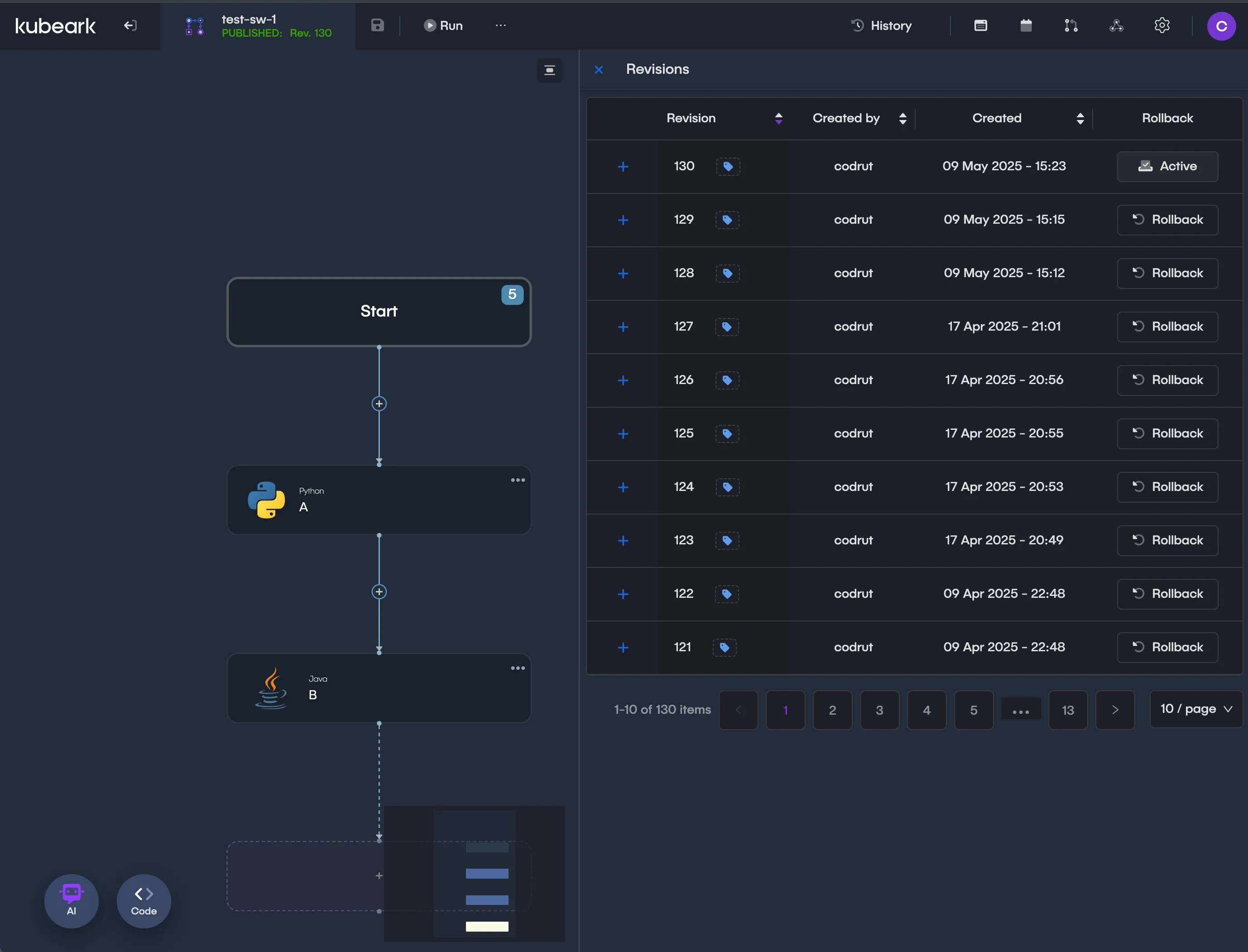
The Revisions feature allows users to view and manage the history of workflow changes. Each time a workflow is saved or published, a new revision is created.
How to Access Revisions
- Go to Workflow Name Button in the main toolbar:
- The workflow name in the toolbar acts as a button when the workflow is published.
- Click the workflow name to open the Revisions panel.
- View Revision: The panel displays a list of all revisions, including details such as: Revision number, timestamp of creation, current active draft.
Best Practices
- Save Frequently: Save your workflow often to create meaningful revisions.
- Publish When Ready: Only publish workflows that are complete and ready for execution.
- Use Revisions for Rollback: If a workflow encounters issues, use the Revisions panel to roll back to a stable version.
These features ensure that workflows are version-controlled, enabling efficient management and tracking of changes.